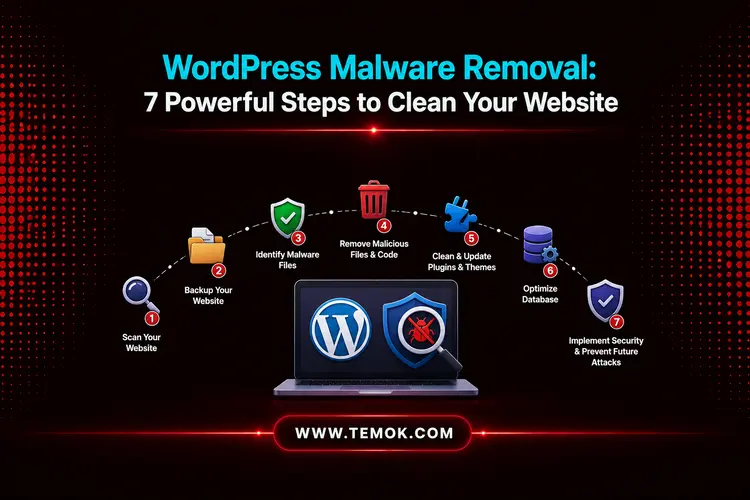

WordPress malware removal includes analyzing affected files, removing harmful code, upgrading plugins and themes, restoring backups, and increasing website security. In 2026, outdated plugins, weak passwords, and susceptible hosting conditions will continue to be the leading causes of WordPress website hacking and blacklisting by Google.
Key Takeaways
- WordPress powers roughly 42% of all websites worldwide, making it one of the most vulnerable platforms for malware assaults.
- Outdated plugins, vulnerable themes, and insecure admin credentials continue to be the top drivers of WordPress infections.
- Regular malware scans, backups, and security upgrades dramatically lower the likelihood of compromised WordPress websites.
- Google may blacklist compromised websites, resulting in significant SEO rankings decreases, traffic loss, and reputational harm.
- Managed WordPress hosting from Temok with server-level security protects against malware, brute-force assaults, and unauthorized access.
Introduction
Malware attacks on WordPress sites may cause data breaches, reputational harm, and major business interruptions. With the correct knowledge and tools, WordPress malware removal & hacked website recovery is simple.
In this blog post, we’ll lead you through seven easy and most important steps to remove WordPress Malware from your site. We’ll walk you through everything from backing up your website to eliminating the most recent security alert.
So, keep reading and exploring to learn how to remove malware from WordPress in 7 easy steps.
Why Are WordPress Sites Specifically Targeted?
WordPress controls over 42.5% of the websites globally. Its popularity and open-source nature make it a tempting target for attackers looking to exploit insecure plugins, themes, or obsolete core files.
Malware may be used to insert spam links, steal important information, or take complete control of your website. That’s why you should scan on a frequent basis, keep your software up to date, and respond swiftly if you see indications of infection.
Why is Detection and WordPress Malware Removal so important?
Despite strong security precautions, WordPress sites are nevertheless vulnerable to many types of malware, including viruses, worms, Trojan horses, and spyware. Malware commonly infiltrates websites via malicious plugins or themes.
For example, in late 2025, the popular WordPress caching plugins W3 Total Cache exposed over 327,000 websites to possible attacks due to a serious command injection vulnerability (CVE-2025-9501). Security experts rated the weakness 9.0 out of 10 after identifying that attackers may execute malicious PHP code and even seize complete control of affected websites via unauthenticated queries.
Furthermore, vulnerabilities in the core WordPress or server software might act as access points.
Once attackers gain access to the system infected with their malicious software, they can create serious damage by deleting files and adding spam links and stealing sensitive information which includes passwords and credit card numbers.
The situation can lead to operational interruptions which will result in decreased customer confidence and subsequent damage to the business.
How to Remove Malware from WordPress in 7 Steps?
Without any further delay, let’s find out how you can do WordPress malware removal easily in 7 easy-to-follow steps:
Step 1: Scan For Malware On Your WordPress Website
You can’t remove malware until you know where it is, so first check your WordPress site for harmful code. WordPress includes a number of anti-malware features that you may use as necessary. Let’s look at the many WordPress malware scanner techniques, from plugins to server-level solutions:
Option 1: Using Plugins
The WordPress plugin repository provides a diverse ecosystem of essential WordPress security plugins capable of detecting and removing malware from your site. These plugins have been designed with user-friendly interfaces and automatic scanning features, which enable non-technical users to operate the programs effectively.
WordFence, Sucuri, MalCare, SecuPress, WPScan – WordPress Security Scanner, JetPack, and iThemes Security are all plugins for removing malware from WordPress. To use a malware removal plugin for WordPress solution, just download your selected choice from the WordPress repository and follow the setup walkthrough. The WordPress malware removal plugin free let you start scans with a single click.
Option 2: Server-Based Solutions
WordPress hosting companies that use strong server-level setup solutions actually work to protect their systems from malware through their security measures while providing safe backup and restore functions.
Immunify360, BitNinja, SiteLock, and CodeGuard are popular server security scanning solutions that provide server-level safety protocols such as firewalls and intrusion detection systems.
Some WordPress security plugins, such as Sucuri, have standalone versions that can do server-level scans, providing a more comprehensive solution. You can also use a WordPress malware cleaner to clean the malware in seconds.
Implementing these sorts of solutions often involves server access or help from your web hosting provider. A professional WordPress developer can help you for WordPress malware removal at this point to guarantee everything goes well.
Step 2: Remove Unnecessary Plugins
There are dozens of WordPress plugins available for maintaining WordPress security, but you cannot install them all at once. All you have to do is utilize a code snippet to simply get around security vulnerabilities while optimizing website speed.
Having several plugins on your website also raises security concerns. As a result, you should remove any unneeded security plugins from your site while keeping just the most critical ones enabled.
Security plugins are useful for preventing hacking, data breaches, digital theft, and malware on your website. Having too many plugins might cause problems.
Also Read: WordPress Staging Plugin: 5 Best Options For Safe Website Testing
Step 3: Back Up Your WordPress Website And Database
WordPress malware removal may be unpleasant, and things may break down throughout the process. As a result, we’ll want to make certain we have a backup to restore in case something goes wrong.
To back up a WordPress site, do a manual backup.
- Using a reliable file manager or an FTP client, download all of the files and directories from your WordPress site’s root folder, and then export the database.
- Depending on your hosting provider and plan, you may also use the cPanel file manager to produce a compressed archive (.zip) of your public_html or httpdocs directory.
- You could also check to see whether your hosting or security service already includes backups.
- If you have a clean, working backup of your website, the path of least resistance may be to just restore it and forget the virus removal process entirely.
However, if your website includes a blog website or is often updated with fresh information, this may not be an option.
Next, we’ll go over how to back up your database. Once you’ve accessed your site’s phpMyAdmin or Adminer, take these steps:
phpMyAdmin
- Access the phpMyAdmin window and choose the database for your WordPress site. This is the database you generated after installing WordPress.
- Click Export from the top menu and choose Custom as the export method.
- Choose SQL from the Format drop-down menu and pick all of the tables.

- If your site is standard size, check Save output to a file and leave Compression at None. If your site is huge, use a compression style for better WordPress malware removal.

- Select Export at the bottom to export the database to your PC.
Adminer
- Choose the database that contains your WordPress data.
- Press the Export button at the top.
- In the Export section, keep all tables as they are by default.
- In the Output section, select Save. If your site is of regular size, pick None for compression; if it is enormous, choose a compression type.
- Choose SQL as the format.
- Make sure to pick both the structure and the data to export.
- When you click Export, the backup will be stored on your computer as an .sql file.

Also Read: Malware Analyst: Guardians Of The Digital Realm
Step 4: Reinstall WordPress Core Files
In the preceding step, we downloaded a new version of WordPress. You can start using the clean version to replace the core WordPress files and eliminate malware from your WordPress site.
Access your site’s contents using DirectAdmin or cPanel, then change the wp-admin and wp-includes directories. These folders do not contain any user material and can be securely changed.
After that, check the following files for evidence of malware:
- php
- wp-settings.php
- wp-load.php
- wp-config.php.htaccess
Because there is no single sort of malware to check for, you must first verify that any suspicious code is malware before uninstalling it. For instance, if you see code like this:
eval(base64_decode(‘aWYoZnVuY3Rpb25fZXhpc3RzKCdleGFtcGxlX2Z1bmN0aW9uJykpeyBleGFtcGxlX2Z1bmN0aW9uKCk7fQ==’));
It’s probably harmful and should be destroyed. Also, check the wp-uploads folder. If you locate any PHP files, remove them immediately because this folder is not designed to hold PHP files.
Step 5: Patch CMS Core Files, Plugins, And Themes

- To apply the most recent security and performance updates for better WordPress malware removal, update WordPress core files via Dashboard > Updates.
- When a new version notice occurs, update installed plugins from the Plugins page as soon as possible.
- To ensure compatibility and security, keep WordPress themes updated via Appearance > Themes.
- Before making any theme or core adjustments, always back up your unique theme code and website data.
Step 6: Check The User List And Privileges
After you’ve removed malware and suspicious code from WordPress, let’s see whether any unauthorized accounts exist on your site. Cybercriminals frequently establish new admin accounts to change your website or get access to sensitive data from within.
To accomplish this:
- Visit your WordPress dashboard and navigate to sidebar → Users → All Users.
- Check the list for any new or questionable admin accounts.
- If you find one, remove it by checking the box next to its name and selecting Delete from the Bulk actions.

Also, evaluate the responsibilities of other accounts to ensure that only the authorized users have access to crucial data. To change their duties, tick the box next to their names.
Step 7: Remove Your Website From The URL Blocklists
To protect visitors’ sensitive data, Google will automatically flag your website if it is hacked or infected with malware. After removing dangerous malware, remember to remove your website’s URL from Google’s blocklist.
You may accomplish this from your Google Search Console admin panel. Open Security & Manual Actions and select the Security Issues tab. To ask Google to re-index your WordPress site, choose “I have fixed these issues” and request a review.
It is important to note that this WordPress malware removal procedure may take several days. We recommend changing it right away since the longer Google restricts your website, the more it hurts search engine optimization (SEO) and your website’s reputation.
Protect Your WordPress Site From Malware With Temok
You need to maintain security for your WordPress website through ongoing efforts that protect your site from malware threats. The probability of malware attacks decreases significantly when you conduct regular scans, maintain constant vigilance, and use the correct protection measures.
However, the field of cybersecurity is complicated and ever-changing. If you’re feeling overwhelmed or want to guarantee your site has the greatest possible protection, don’t be afraid to use the fastest WordPress hosting from a reliable web hosting provider.
In this regard, Temok Managed WordPress Hosting protects your website from malware by utilizing powerful server-level security, regular malware scanning, automatic upgrades, and proactive threat monitoring. It eliminates vulnerabilities and protects your website from cyberattacks and harmful viruses by including built-in firewalls, secure backups, and optimized WordPress environments.
FAQs (Frequently Asked Questions)
What Is WordPress Malware?
WordPress malware is malicious code that is injected into a WordPress site with the intention of exploiting vulnerabilities in plugins, themes, or core files in order to gain control, steal data, or harm reputation.
Can A WordPress Website Be Hacked?
Yes, hackers create backdoor admin accounts on WordPress sites so they can gain access even after you change your passwords.
How To Check Malware in WordPress Website?
Malware detection in WordPress sites combines automatic external scans, inner plugin-based deep scans, and manual file inspections.
Is WordPress Still Safe To Use?
Yes, WordPress is still a very secure CMS in 2026. You should not have any problems as long as you choose a reputable hosting company and adhere to basic best practices.
Conclusion
By now, your WordPress site should be malware-free and functioning properly. More significantly, you have strengthened it against potential threats. Regular backups, upgrades, and a vigilant eye on security will help keep your site secure. Using the aforementioned WordPress malware removal techniques can help you safeguard your website from harmful activity.
To avoid future harm, restrict WordPress access and retrieve all possible backups before removing the infection. However, we recommend utilizing Temok’s Managed WordPress Hosting to automatically safeguard your WordPress website from viruses.